Messages & Navigation
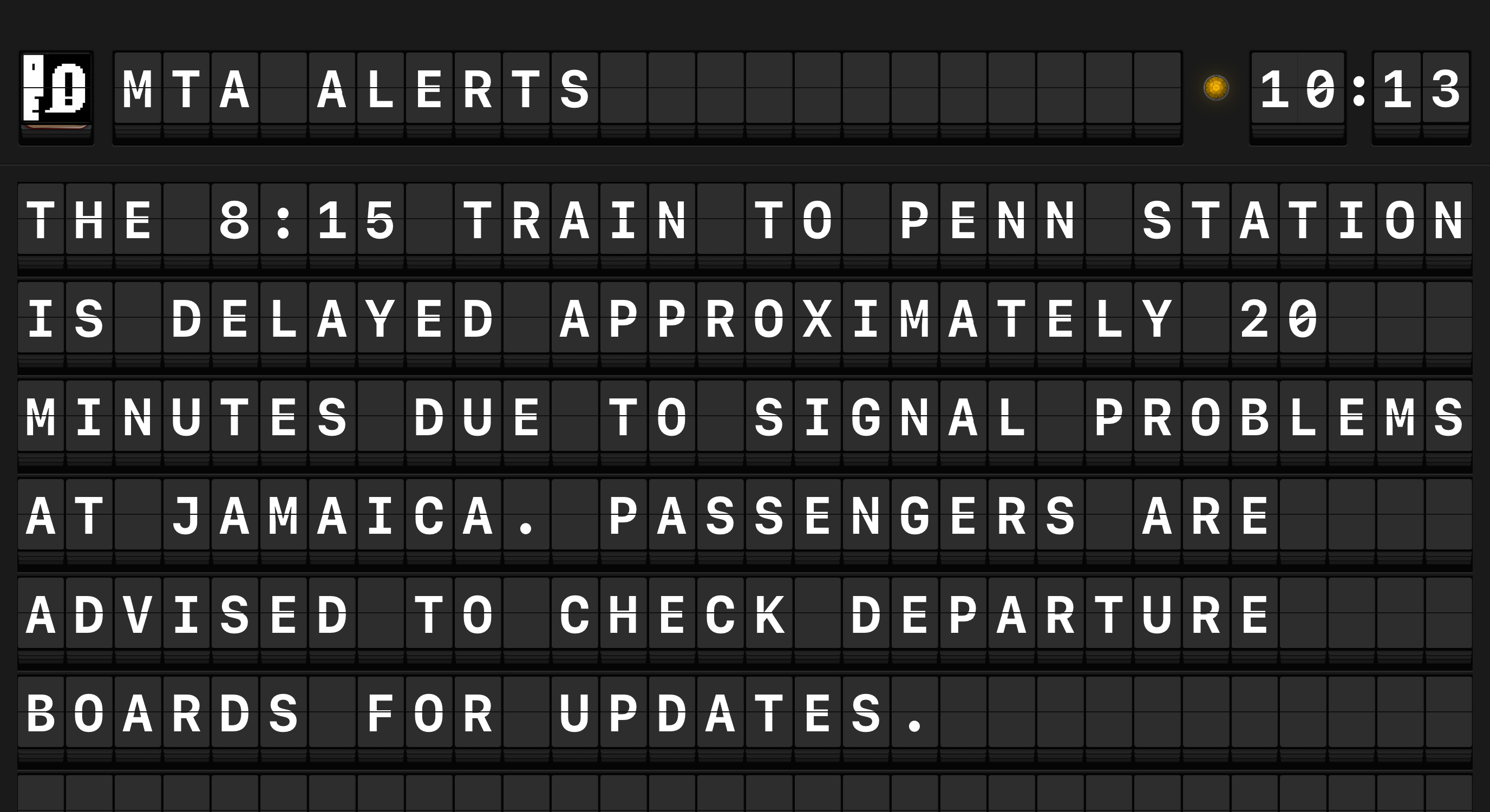
Arrivals Board shows messages one at a time, flipping each character into place with the signature split-flap animation.
Message rotation
Messages follow a simple cycle: a message flips onto the board, stays on screen for a set amount of time (20 seconds by default), and then the next message takes its place. You can adjust the hold duration in Settings > Display.
Timer pauses in the background
If you switch to another app on iPad, the timer pauses and picks up where it left off when you come back. You won't miss a message.
Long messages: Truncate vs. Complete
When a message is too long to fit on screen, Arrivals handles it in one of two ways:
Truncate (default) -- The message fills the screen and any extra text is cut off. This keeps things clean and works well for short content like headlines and alerts.
Complete -- The message is split across multiple pages. Each page stays on screen for the full hold duration before advancing. Once all pages have been shown, the next message begins.
When to use Complete mode
Switch to Complete if your sources tend to have longer content -- full RSS summaries or lengthy social posts. You can change this in Settings > Display.
How special content appears
Since a split-flap board can only show text, Arrivals converts certain content into readable labels:
| What's in the message | What you'll see on the board |
|---|---|
| An image (no description) | ⟨IMAGE⟩ |
| An image with a description | ⟨IMAGE: description text⟩ |
| An animated GIF | ⟨GIF⟩ |
| A link with a page title | ⟨LINK: Page Title⟩ |
| A link without a title | ⟨LINK⟩ |
Highlights
Arrivals uses color to make social elements stand out:
| Element | Color |
|---|---|
| @mentions | Blue |
| #hashtags | Amber / Gold |
These are easy to spot at a glance, even from across the room.
Inline formatting
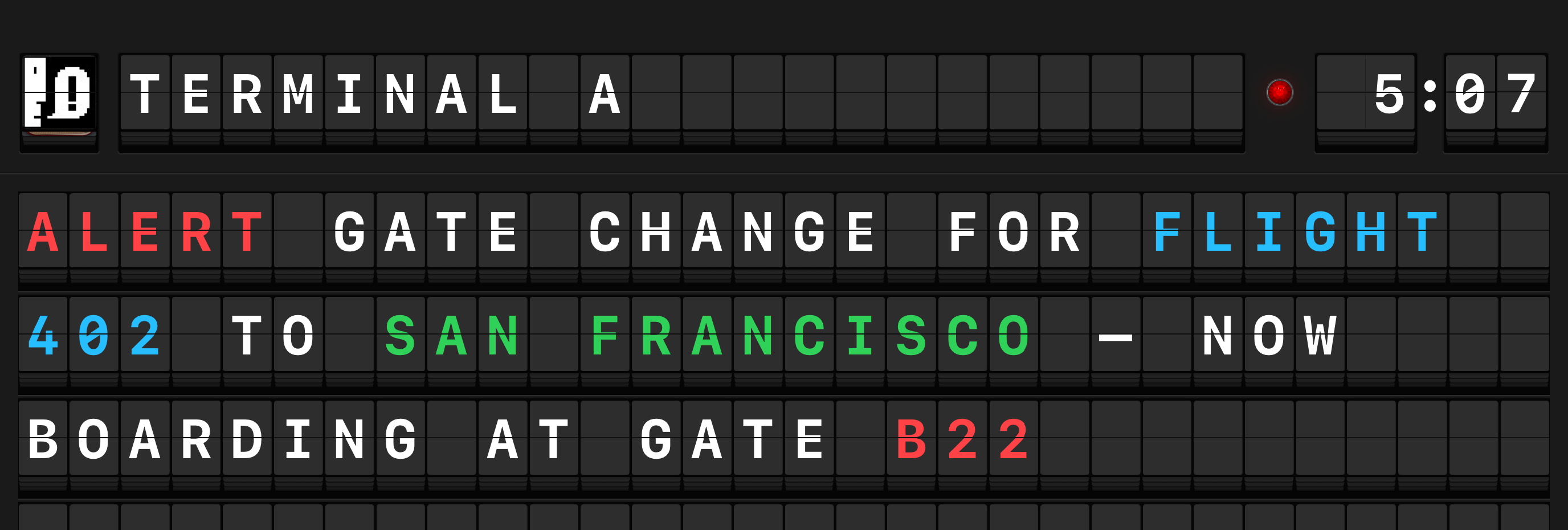
Messages from user-input sources --- Manual Input, Siri Shortcuts, the REST API, the web form, MQTT, and the URL scheme --- support inline formatting for colored text and SF Symbols.
Colored text
Wrap text in curly braces with a color name or hex value:
{red|ALERT} System temperature high
{#FF6600|WARNING} Disk space low
Available named colors: red, orange, yellow, green, mint, teal, cyan, indigo, purple, pink, brown, white, gray, black, amber, blue.
The amber and blue named colors match the highlight colors used for #hashtags and @mentions.
SF Symbols
Insert any SF Symbol by wrapping its name in colons:
:checkmark.circle: Build passed
:exclamationmark.triangle: Deployment failed
The symbol occupies a single flap cell on the board.
Tappable links
Messages authored through the local HTTP API, URL scheme, MQTT, or manual input can embed tappable links using Markdown [label](url) syntax, where the target is an http or https URL. The label appears on the board; tapping it on iPad opens the URL. Other schemes (such as tel: or mailto:) are not turned into links.
The first tap on a host you haven't opened before prompts for confirmation: Open Once, Always Allow, or Cancel. "Always Allow" remembers the host at Settings → Message Links.
Nesting
Color blocks can be nested and can contain SF Symbols:
{red|:exclamationmark.triangle: CRITICAL} Server down
For the full formatting reference, see Siri & Shortcuts > Inline formatting.
What you can tap and swipe
| Gesture | What it does |
|---|---|
| Tap a message | Opens the original post or article |
| Tap a link indicator | Opens the linked URL |
| Tap an @mention | Opens that person's profile |
| Tap a #hashtag | Searches for the hashtag |
| Swipe left | Skips to the next message |
| Touch and hold the board | Opens Settings |
Quick skip
Swipe left to skip a message you've already read. Handy when catching up after being away.
| Remote input | What it does |
|---|---|
| Swipe left | Skips to the next message |
| Play/Pause | Pauses or resumes message rotation |
See Remote Controls for the full list of remote interactions.
Note
Opening links, profiles, and hashtag searches isn't available on Apple TV, since tvOS doesn't have a web browser.