Push Notifications
Arrivals Board can receive messages via push notifications, allowing you to send messages to your board from anywhere in the world --- even when you are not on the same network. Messages typically arrive within seconds.
Setup
- Open Settings and tap Sources > Push Notifications.
- Toggle Enable on.
- When prompted, allow Arrivals to send you notifications. This is required for push delivery.
- Arrivals begins listening for incoming messages.
- Open Settings and navigate to Sources > Push Notifications.
- Toggle Enable on.
- Arrivals begins listening for incoming messages.
iCloud account required
Push Notifications require an active iCloud account on the device. The device must be signed in to iCloud for this source to work.
Configuration reference
| Option | Default | Description |
|---|---|---|
| Enable | Off | Turns the push notification source on or off. No other configuration is needed. |
Sending a push message
You can send messages to your board from several places:
- The Local Server REST API --- Post a message to the
/api/messagesendpoint with"push": truein the JSON body. The local server delivers it to your board wherever it is. - Siri Shortcuts --- Use the "Send to Arrivals" shortcut action to send a message from your iPhone, iPad, or Mac.
- Custom scripts --- See the Automation section for details on sending messages programmatically.
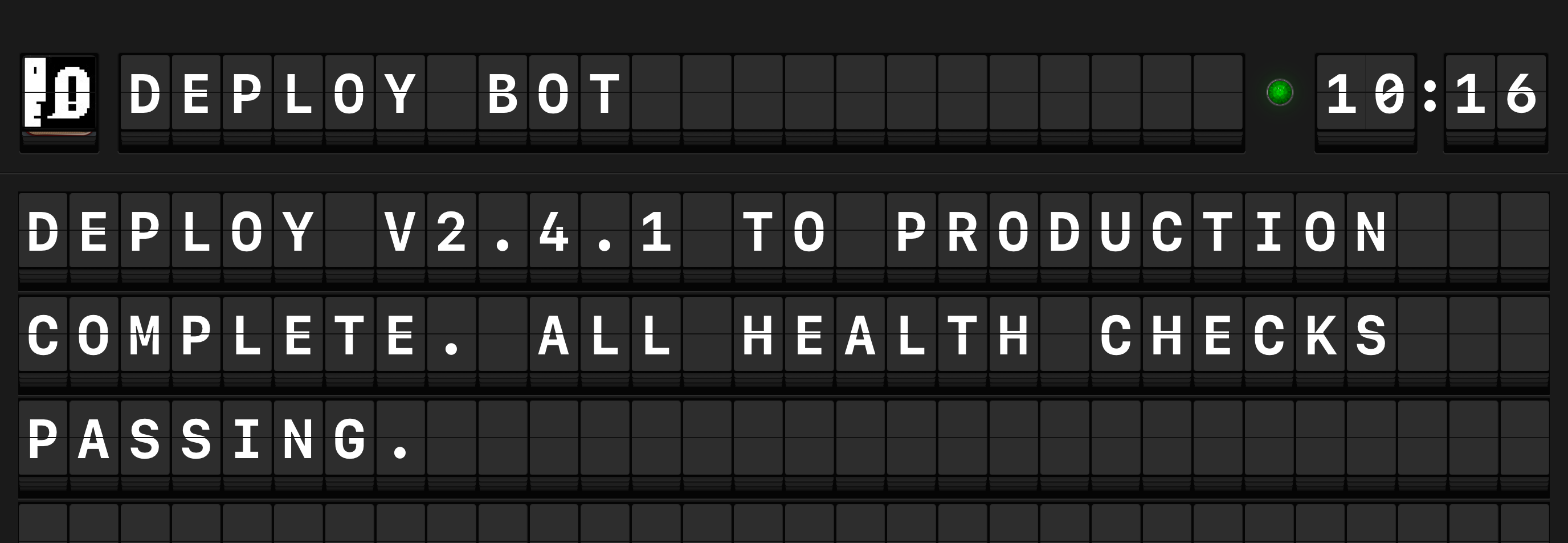
Messages sent via push are displayed on the board just like messages from any other source, complete with sender name, text, indicator color, and urgency.
Features
Instant delivery
Push messages typically arrive within seconds, making this source suitable for time-sensitive alerts from remote systems.
No server to maintain
Push notifications use Apple's built-in infrastructure as part of your iCloud account. There is no server for you to set up, maintain, or pay for.
Troubleshooting
Messages not arriving
If push notifications are enabled but messages are not appearing:
- Ensure the device is signed in to iCloud (check in system Settings).
- On iPad, verify that notifications are allowed for Arrivals in iOS Settings > Notifications > Arrivals.
- Check your internet connection.
- Try toggling the source off and on again to re-register.
Combine with Siri Shortcuts for remote alerts
Create a Siri Shortcut on your iPhone that sends a push message to Arrivals. You can trigger it manually, on a schedule, or from an automation --- and the message will appear on your board wherever it is, even across different networks.