RSS / Atom Feeds
Arrivals Board can display headlines from any standard RSS or Atom feed. Just provide a feed URL --- or enter a website URL and Arrivals finds the feed automatically.
Setup
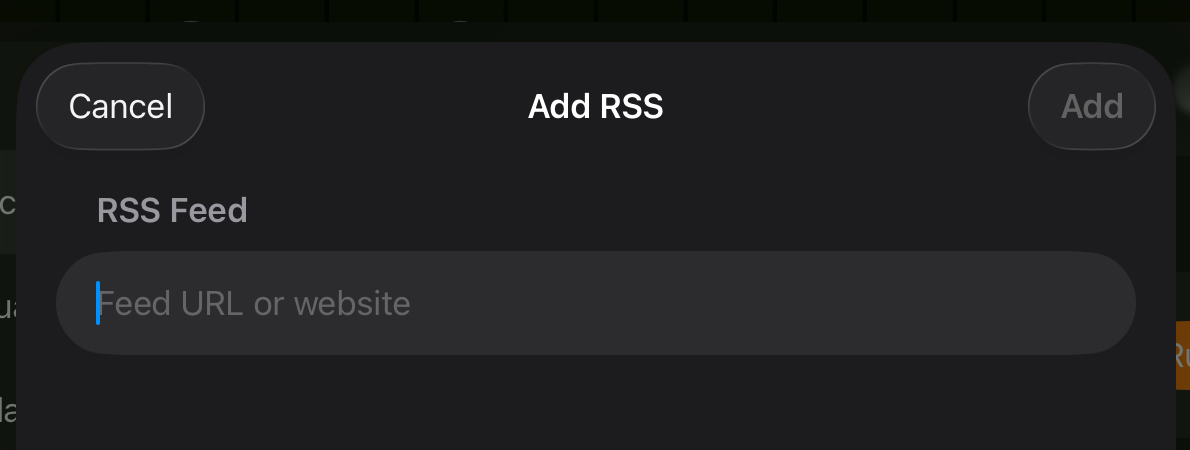
- Open Settings and tap Sources > RSS.
- Toggle Enable on.
- Enter the Feed URL. This can be a direct feed URL (ending in
.rss,.xml,.atom, etc.) or a regular website URL. - If you entered a website URL, Arrivals attempts to find the feed automatically. If multiple feeds are found, you are prompted to choose one.
- Adjust the Poll Interval if desired.
- Headlines begin appearing on the board.
- Open Settings and navigate to Sources > RSS.
- Toggle Enable on.
- Enter the Feed URL using the on-screen keyboard. If the URL is long, consider pairing a Bluetooth keyboard or setting it up on iPad first (it syncs via iCloud).
- Adjust the Poll Interval if desired.
- Headlines begin appearing on the board.
Configuration reference
| Option | Default | Description |
|---|---|---|
| Feed URL | --- | The URL of the RSS or Atom feed, or a website URL for auto-discovery |
| Poll Interval | 5 minutes | How often Arrivals checks for new items (1--60 minutes) |
| Initial Messages | 5 | Number of recent items to load on first connect (1--50) |
Features
Auto feed discovery
You do not need to hunt down the exact feed URL. Enter a website URL instead --- something like https://example.com --- and Arrivals finds the RSS or Atom feed for you.
Feed image and favicon
Arrivals displays the feed's image or the site's favicon alongside the source name in settings. This helps you distinguish between multiple RSS sources at a glance.
Alt-text extraction
When feed items contain images with alt-text, Arrivals extracts and appends it to the message. This is useful for feeds where the image description carries important context.
Popular feed ideas
Feeds you might not know about
Many services offer RSS or Atom feeds that are not prominently advertised:
- Reddit --- Append
.rssto any subreddit URL (e.g.,https://www.reddit.com/r/apple/.rss) - GitHub Releases --- Append
.atomto any repository's releases page (e.g.,https://github.com/user/repo/releases.atom) - YouTube Channels --- Use
https://www.youtube.com/feeds/videos.xml?channel_id=CHANNEL_ID - Hacker News ---
https://hnrss.org/frontpageorhttps://hnrss.org/newest - WordPress sites --- Most WordPress sites have a feed at
/feed/ - Substack --- Append
/feedto any Substack publication URL
Troubleshooting
Feed not found
If auto-discovery does not find a feed, try locating the feed URL manually. Look for an RSS icon on the website, or search for "site name RSS feed" online.
Poll interval considerations
A shorter poll interval means faster updates but more network traffic. For most feeds, the default 5-minute interval strikes a good balance. High-volume feeds (like Reddit) may benefit from a longer interval to avoid fetching the same items repeatedly.