Manual Input
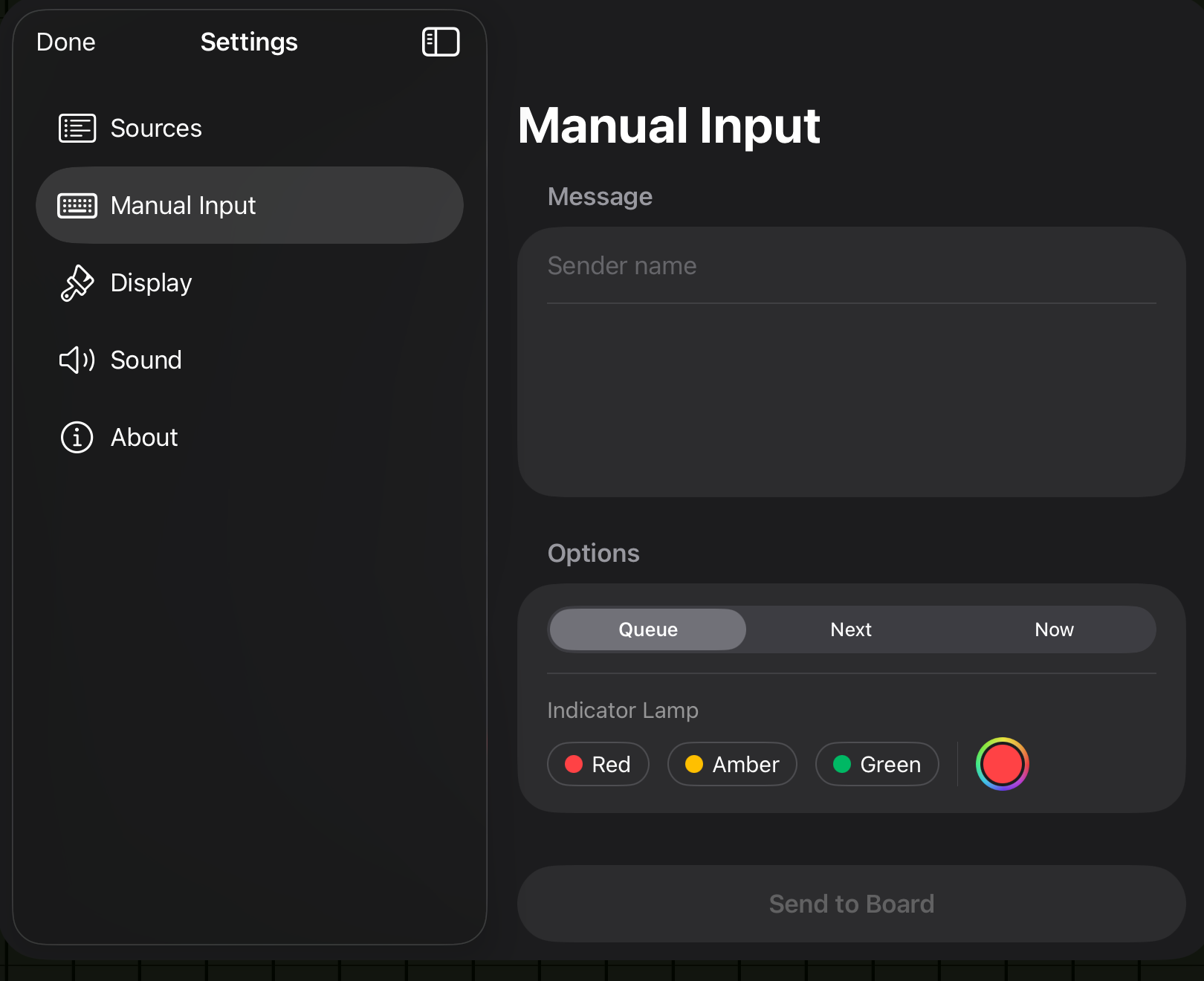
Manual Input lets you type a message directly onto the board. This is the simplest way to post a one-off message --- no accounts, no configuration, no network required. Manual Input is available on iPad only.
iPad only
Manual Input is not available on Apple TV. To send messages to the Apple TV board, use the Local Server web interface or the REST API from another device.
Setup
No setup is required. Manual Input is always available on iPad.
- Touch and hold on the board background (or tap the + icon if visible in the toolbar).
- The Manual Input form slides up from the bottom of the screen.
- Fill in the fields and tap Send.
- The message flips onto the board immediately.
Input fields
| Field | Default | Description |
|---|---|---|
| Sender | MANUAL | The name displayed in the sender column. You can change this to anything you like. |
| Message | --- | The message text to display on the board. Required. Supports inline formatting. |
| Priority | Next | Controls when the message is displayed. Queue (wait for turn), Next (jump ahead), or Now (interrupt immediately). |
| Indicator Color | None | The color of the indicator lamp on the left edge of the message row. Choose from preset colors (red, amber, green) or pick a custom color. |
| Avatar | None | An optional image for the sender avatar. Tap the avatar area to choose a photo from your library. |
Using the color picker
The indicator color field offers three quick presets and a custom option:
- Red --- Typically used for alerts or urgent items.
- Amber --- A caution or attention color.
- Green --- An "all clear" or positive status indicator.
- Custom --- Opens the system color picker, where you can choose any color.
If you leave the indicator color unset, the message row displays without an indicator lamp, matching the default appearance of most other sources.
Features
Instant display
Manual messages appear on the board the moment you tap Send --- no waiting for updates or network activity.
Sender memory
Arrivals remembers the last sender name you used for manual input. The next time you open the form, the sender field is pre-filled with your previous value. This is convenient if you always use the same label (e.g., your name, "ANNOUNCEMENT", or "STATUS").
Tips
Quick status updates
Manual Input is great for quick status messages on a shared display --- "LUNCH AT NOON", "MEETING IN ROOM 3", or "BACK IN 10 MIN". Pair it with the urgent toggle and a colored indicator for high-visibility announcements.
Combine with other sources
Manual messages are interleaved with messages from all other active sources. You can post a manual message alongside a live Mastodon feed, RSS headlines, and calendar events --- it all merges into the same board.