iPad Setup
This guide walks you through your first few minutes with Arrivals Board on iPad, from launch to a fully configured board.
First launch
When you open Arrivals for the first time, the board runs through a brief boot sequence. Rows flip into place from top to bottom, just like a real split-flap display warming up. After a few seconds the board settles and displays a set of welcome messages.
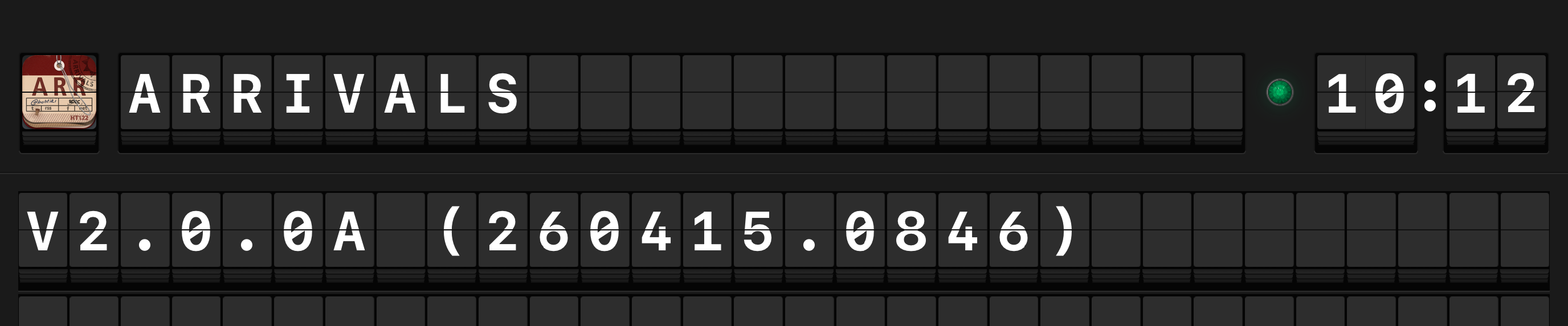
There is nothing you need to do during the boot sequence -- just enjoy the show.
Opening Settings
There are two ways to reach Settings:
- Tap the gear icon in the bottom-right corner of the board. By default the gear stays hidden until you touch the board, then fades in.
- Touch and hold anywhere on the board background (not on a message row).
Tip
Touch and hold always opens Settings --- handy in full-screen mode, or if you have set the gear to Never. See Settings Button visibility.
Adding your first source
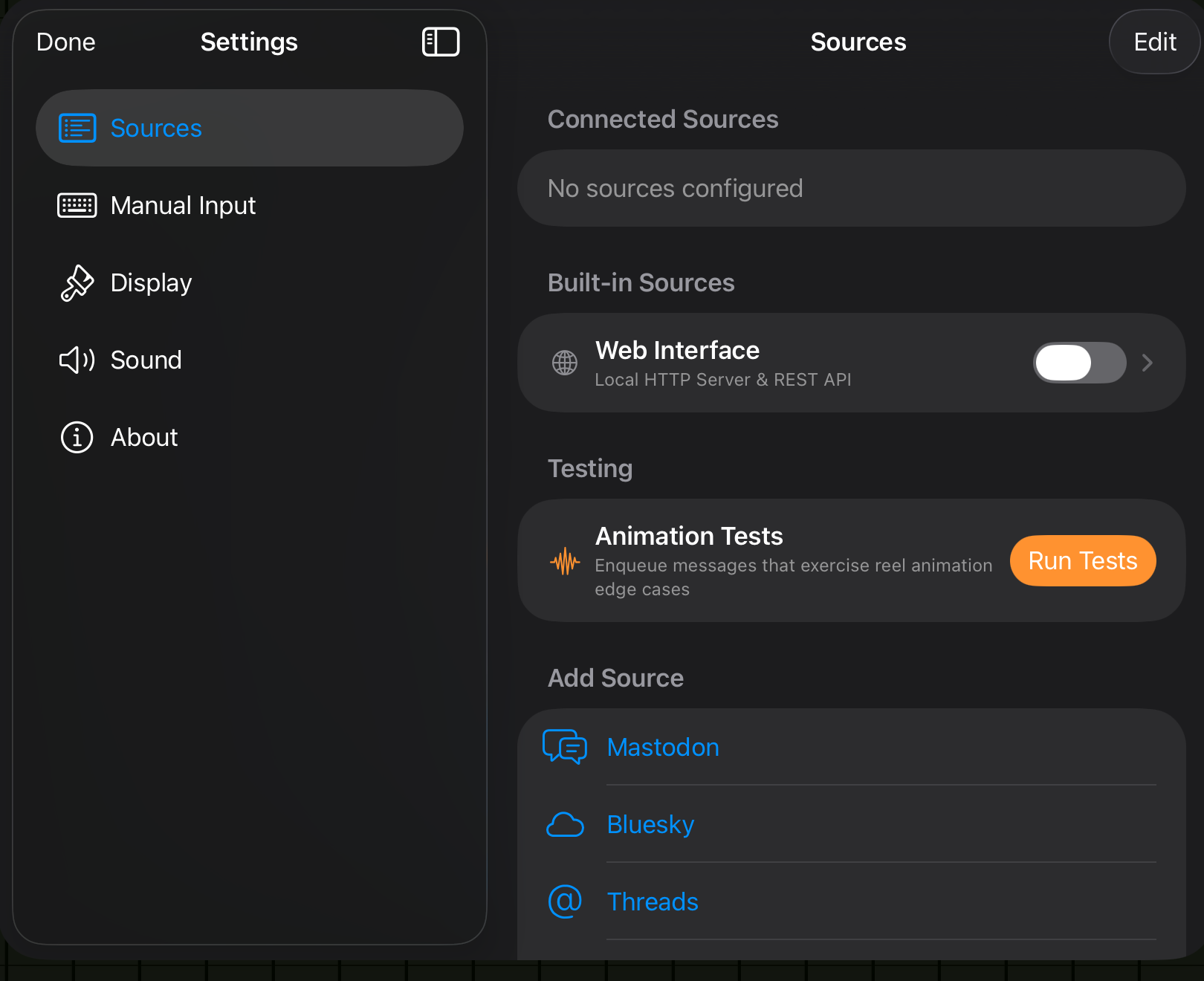
The fastest way to get content on your board is to add a Mastodon account or an RSS feed.
Option A: Mastodon
- Open Settings > Sources > Add Source.
- Select Mastodon.
- Enter your instance URL (for example,
mastodon.social). - Sign in when prompted. Arrivals will request read-only access to your timeline.
- Tap Done. Posts from your home timeline will begin appearing on the board within moments.
Option B: RSS feed
- Open Settings > Sources > Add Source.
- Select RSS / Atom.
- Paste the feed URL (for example,
https://daringfireball.net/feeds/main). - Tap Done. Headlines will start flipping onto the board.
Note
You can add as many sources as you like. Messages from all active sources are mixed together on the board. See Message Sources for setup guides for every supported source.
Adjusting display settings
Once you have messages flowing, you may want to tweak how the board looks and sounds.
Open Settings > Display to adjust:
| Setting | What it does |
|---|---|
| Row count | How many message rows are visible on the board |
| Flip speed | How fast characters flip (from leisurely to rapid) |
| Color scheme | Board and character colors (classic black-and-yellow, white-on-black, and more) |
| Font | The typeface used on the flaps |
| Sound | Toggle the mechanical flip sound effect and adjust its volume |
See Display Settings for the full list of options.
Key gestures
Learn these gestures to navigate the board like a pro:
| Gesture | Action |
|---|---|
| Tap a message row | Opens the linked content (post, article, etc.) |
| Swipe left on the board | Advances to the next message |
| Swipe right on the board | Returns to the previous message |
| Touch and hold the board background | Opens Settings |
| Pinch | Adjusts the zoom level of the board |
Hands-free operation
Once configured, Arrivals is designed to run unattended. Messages cycle automatically, so you can mount your iPad on a stand and let it run as an ambient display. See Ambient Display for tips.
Next steps
- Add more sources -- Connect Bluesky, Threads, Weather, Calendar, MQTT, and more.
- Customize settings -- Fine-tune colors, sound, and screen behavior.
- Set up automation -- Control Arrivals via Siri Shortcuts or the API.