The Board
The board is the heart of Arrivals Board. It recreates the look, feel, and sound of a classic split-flap display, with every character flipping into position one at a time.
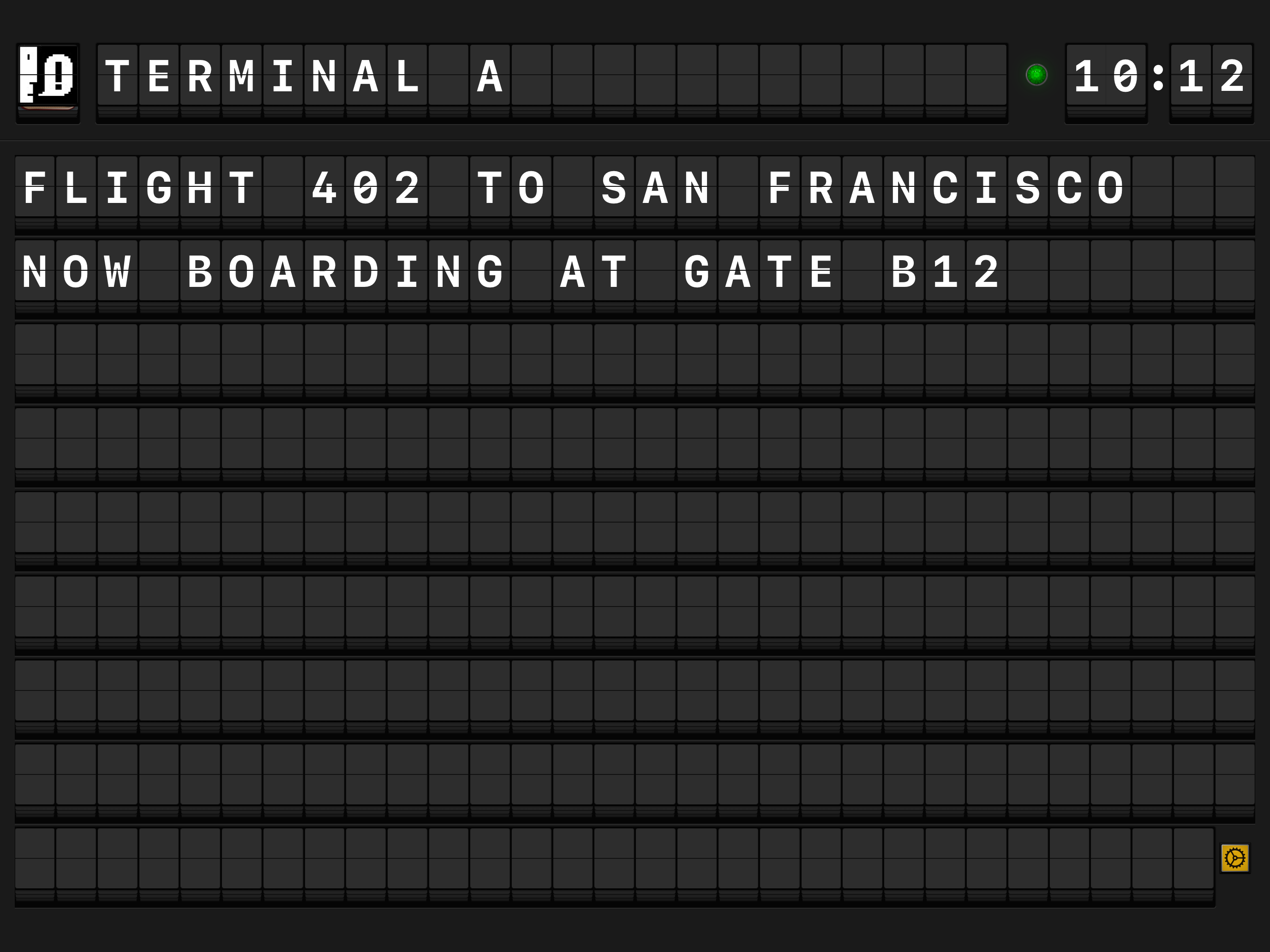
Board anatomy
The display has three areas, stacked top to bottom:
| Area | What it shows |
|---|---|
| Header Row | The sender's avatar and name, an indicator lamp, and a real-time clock. See Header & Clock. |
| Plate Seam | A thin decorative line separating the header from the messages, just like on a real split-flap board. |
| Message Body | The main area where message text appears, one flap per character. See Messages & Navigation. |
┌──────────────────────────────────────────────────┐
│  [Avatar]  SENDER NAME      ● LAMP    12:34      │  ← Header Row
├──────────────────────────────────────────────────┤  ← Plate Seam
│  T H I S   I S   T H E   M E S S A G E          │
│  B O D Y   W H E R E   T E X T   A P P E A R S  │  ← Message Body
│                                                    │
└──────────────────────────────────────────────────┘
How the board fits your screen
The board adapts to your screen automatically. It figures out how many rows and columns of characters will fit, and adjusts whenever the screen size changes -- for example, when you rotate your iPad or use Split View. You never need to configure this yourself.
iPad supports two flap size modes, which you can change in Settings > Display:
| Mode | Best for |
|---|---|
| Regular | Normal viewing distances -- great for tabletop or wall-mounted displays |
| Compact | Fitting more text on screen, especially on smaller iPads |
Choosing a size
Use Regular when the iPad is across the room. Switch to Compact when you want to see more text at once -- for example, longer headlines or full social media posts.
Apple TV uses a single, larger flap size designed for comfortable reading from across the room. This is not adjustable.
What's next
- Header & Clock -- The clock, indicator lamp, sender avatar, and sender name.
- Messages & Navigation -- How messages appear, scroll, and respond to your input.
- Character Modes -- Choose between uppercase-only, mixed-case, and strict vintage rendering.