Local Server
Arrivals Board includes a built-in web server that accepts messages over your local network. Any device or script on the same network can post messages to the board by sending a request. The server also provides a web-based form for quick manual submissions.
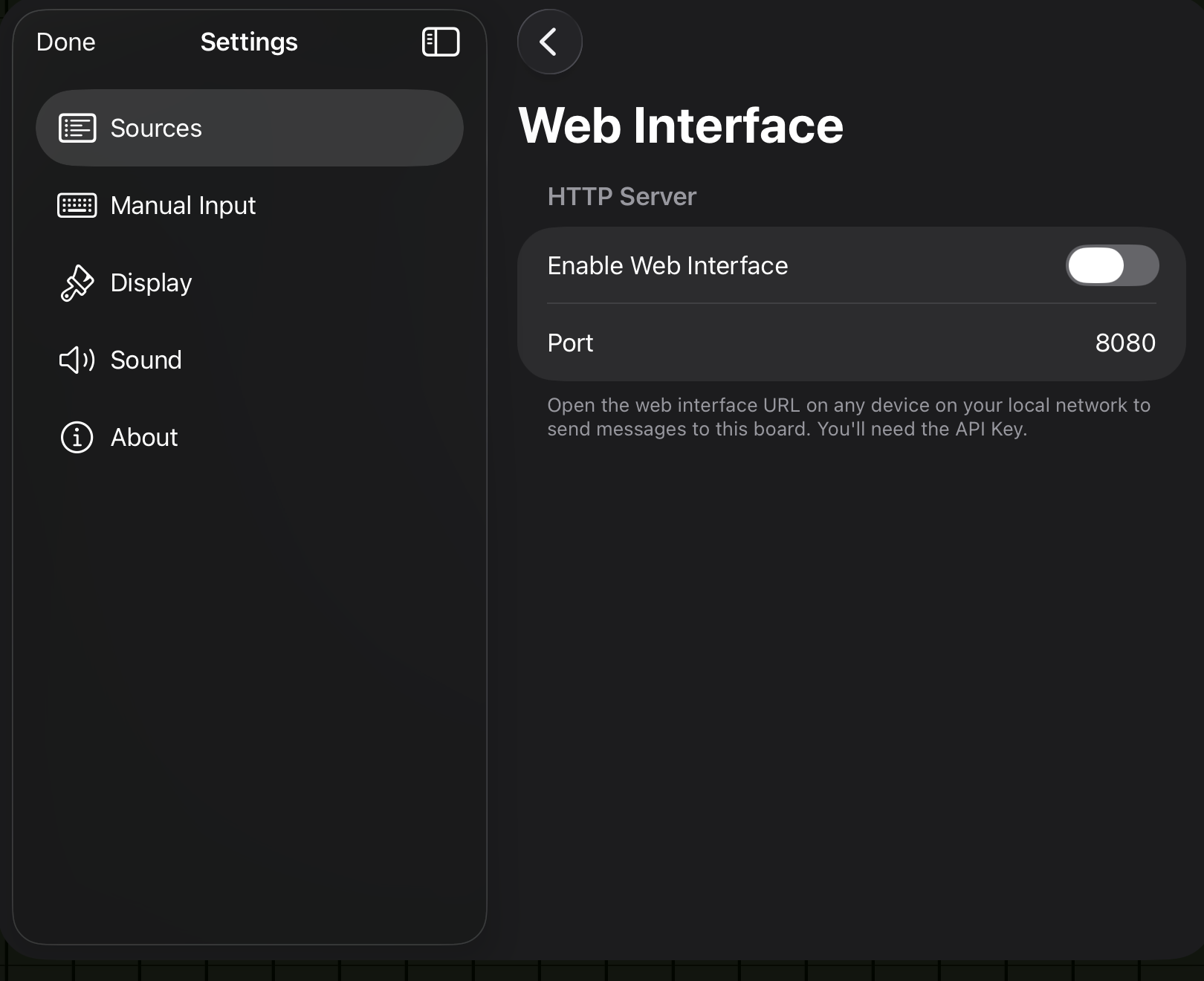
Setup
- Open Settings and tap Sources > Local Server.
- Toggle Enable on. The server starts immediately.
- Note the URL displayed below the toggle (e.g.,
http://192.168.1.42:8080). This is the address other devices will use to send messages. - An API Key is generated automatically. You will need this key to authenticate requests.
- Optionally adjust the Port if the default conflicts with another service.
- Optionally enable Localhost Only to keep the server reachable only from this device.
- Open Settings and navigate to Sources > Local Server.
- Toggle Enable on. The server starts immediately.
- Note the URL displayed on screen.
- The API Key is shown on screen. You can also view it by navigating back to this settings page at any time.
- Optionally adjust the Port.
- Optionally enable Localhost Only (note: this disables the QR sign-in flow used by Mastodon and Threads).
The server starts on enable
The server begins listening the moment you toggle it on. There is no separate "Start" action. Toggling it off stops the server immediately.
Configuration reference
| Option | Default | Description |
|---|---|---|
| Enable | Off | Starts or stops the built-in web server |
| Port | 8080 | The port the server listens on (1024--65535) |
| Localhost Only | Off | When on, the server binds to the loopback interface only. Other devices on the local network cannot connect. |
| API Key | Auto-generated | A secret key required for requests. Tap Regenerate to create a new key and invalidate the old one. |
Web interface
When the local server is running, opening the displayed URL in any browser on the same network loads a dark-themed web form where you can compose and send messages manually.
The web form includes the following fields:
| Field | Description |
|---|---|
| API Key | Pre-filled if you opened the link from Arrivals settings. Otherwise, paste your API key here. |
| Sender | The name displayed in the sender column on the board |
| Message | The message text to display. Supports inline formatting for colored text and SF Symbols. |
| Avatar | An optional image for the sender avatar. Upload a PNG or JPEG (max 1 MB). The image is automatically cropped to a square and scaled to 512×512. |
| Indicator Color | A color picker for the indicator lamp (optional) |
| Priority | Controls when the message is displayed: Queue (wait for turn), Next (jump ahead), or Now (interrupt immediately) |
Submit the form and the message appears on the board immediately.
Bookmark the web interface
Bookmark the local server URL on your phone or laptop for quick access. It is a convenient way to post a message to the board without opening the Arrivals app itself.
REST API
The local server exposes a REST API for programmatic message posting. This is the same API documented in detail in the Automation > REST API section. Here is a quick example:
curl -X POST http://192.168.1.42:8080/api/messages \
  -H "Content-Type: application/json" \
  -H "Authorization: Bearer YOUR_API_KEY" \
  -d '{
    "sender": "Build Server",
    "text": "Deploy completed successfully",
    "indicatorColor": "#00FF00",
    "urgent": false
  }'
For the full API reference --- including request/response formats and error codes --- see Automation > REST API.
Features
Auto-generated API key
When the local server is first enabled, Arrivals generates a random API key. All requests must include this key in the Authorization header. You can regenerate the key at any time from the source settings, which immediately invalidates the previous key.
Configurable port
The default port is 8080, but you can change it to any value between 1024 and 65535. This is useful if another service on your network already uses port 8080.
Localhost Only
Enable Localhost Only to restrict the server to the device running Arrivals. In this mode, the web interface and REST API are reachable only from the same device (via 127.0.0.1) — other devices on your Wi-Fi cannot connect, even if they know the port and API key.
This is useful when:
- You are on an untrusted network (coffee shop, conference Wi-Fi) and want the server running without exposing it.
- You are developing or testing scripts that run on the same device.
- Another app on the device proxies or bridges messages to the board.
When Localhost Only is on, the URL shown in settings changes to http://127.0.0.1:<port> and the QR code / share link is hidden (a localhost URL would not work from another device). Toggle it off to restore LAN access — no restart needed.
Apple TV QR sign-in requires LAN access
QR code sign-in for Apple TV needs the local server to be reachable from your phone. Leave Localhost Only off on the device hosting the server used for QR sign-in.
QR code authentication for Apple TV
The local server also handles QR code sign-in for Apple TV. When you scan a QR code to sign in to a source (such as Mastodon or Threads) on Apple TV, the QR code points to the local server, which completes the sign-in and passes the credentials back to the Apple TV.
Local server required for Apple TV QR sign-in
If you use QR code sign-in on Apple TV for Mastodon or Threads, the local server must be running on at least one device on the same network. It does not need to be the Apple TV itself --- the local server running on your iPad is sufficient.
Troubleshooting
Cannot reach the server
If the web interface or API is not reachable from another device:
- Verify both devices are on the same local network (same Wi-Fi network or subnet).
- Check that the port is not blocked by a firewall or router configuration.
- On iPad, ensure Arrivals is in the foreground or has background activity enabled. The server may stop when the app is fully suspended.
- Confirm the URL and port match what is displayed in the Local Server settings.
401 Unauthorized
If your request returns a 401 error, the API key is incorrect or missing. Copy the key from Settings > Sources > Local Server and include it in the Authorization: Bearer header.
Keep the server running on Apple TV
Apple TV does not suspend foreground apps the way iPad does, making it a reliable host for the local server. If you want the server to be available around the clock, keep Arrivals running on Apple TV.