Message Sources
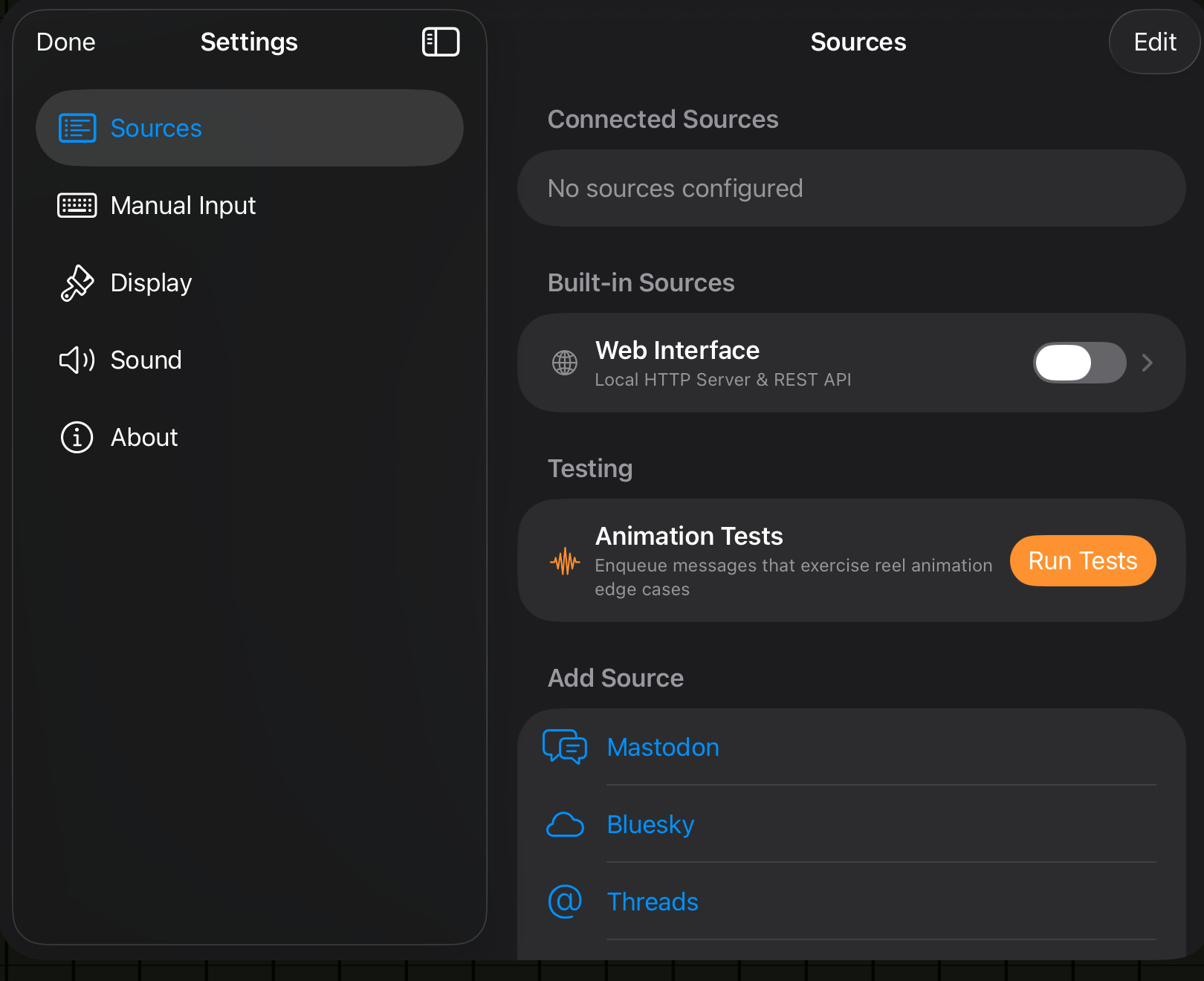
Arrivals Board can show messages from up to ten different sources at the same time. Each source works independently --- enable, disable, and configure them however you like. Messages from all active sources are blended into a single timeline on the board.
Getting started
Every source follows the same basic pattern:
- Enable the source in Settings.
- Sign in or provide connection details (where required).
- Configure options like how many messages to show or what to display.
- Messages start appearing on the board automatically.
You can mix and match freely. Run a Mastodon timeline alongside weather updates, calendar events, and an MQTT feed from your home automation system --- all on the same board.
Start small
You do not need to enable every source at once. Start with one or two, get comfortable with the display, then add more as you like.
Available sources
| Source | Description |
|---|---|
| Mastodon | Posts from your home timeline on any Mastodon-compatible instance |
| Bluesky | Posts from your Bluesky feed |
| Threads | Posts from your Threads account |
| RSS / Atom Feeds | Headlines from any RSS or Atom feed |
| MQTT | Messages from an MQTT broker --- ideal for home automation |
| Calendar | Upcoming events from your device calendars |
| Weather | Current conditions and severe weather alerts |
| Push Notifications | Messages sent to your board from anywhere via push notifications |
| Local Server | A built-in web server for posting messages from your local network |
| Manual Input | Type messages directly onto the board (iPad only) |
Source indicators
Each message on the board can display a colored indicator lamp on its left edge. Some sources set this automatically (for example, Weather uses amber for severe alerts), and you can override the color for manual messages. See The Board > Messages & Navigation for details on how indicators appear on the display.
iCloud Sync
Source configurations sync across your devices via iCloud. If you set up Mastodon on your iPad, the same configuration is available on your Apple TV automatically. Sign-in credentials are stored securely in the Keychain and sync separately.
Per-device exceptions
Some sources behave slightly differently per platform. Calendar access and Location permissions must be granted on each device individually. Manual Input is available only on iPad.