Calendar
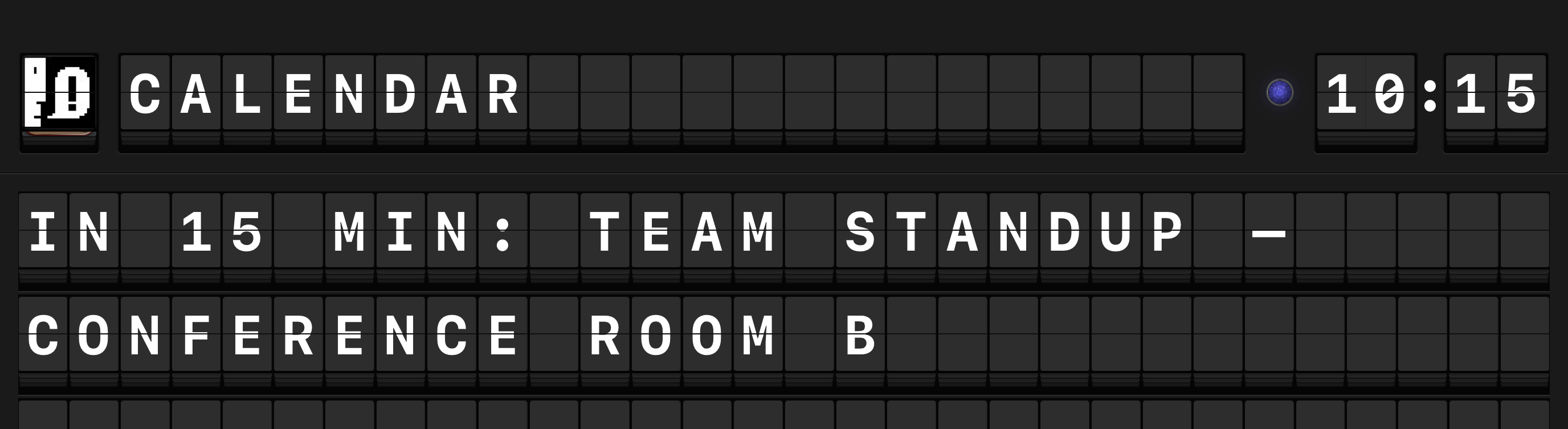
Arrivals Board can display upcoming events from your device calendars, turning the board into a glanceable schedule. Events are shown with time-relative labels like "NOW", "IN 5 MIN", and "IN 1 HR" --- so you always know what is coming up without checking the clock.
Setup
- Open Settings and tap Sources > Calendar.
- Toggle Enable on.
- When prompted, grant Arrivals Full Calendar Access.
- On iOS 17 and later, the system asks for "Full Access" to your calendars. Arrivals needs this to read event details (title, time, calendar name).
- On earlier versions, the standard calendar permission is sufficient.
- Select which Calendars to display. Each calendar is listed with its color.
- Adjust the Lookahead Window to control how far ahead Arrivals looks for events.
- Upcoming events begin appearing on the board.
- Open Settings and navigate to Sources > Calendar.
- Toggle Enable on.
- Grant Arrivals calendar access when prompted.
- Select which Calendars to display.
- Adjust the Lookahead Window if desired.
- Upcoming events begin appearing on the board.
Permission must be granted on each device
Calendar access is a per-device permission. Even if you set up the Calendar source on iPad, you must also grant calendar access on Apple TV separately when you first enable it there. The source configuration syncs via iCloud, but the OS permission does not.
Configuration reference
| Option | Default | Description |
|---|---|---|
| Selected Calendars | All | Choose which calendars to display. Each calendar is shown with its assigned color. |
| Lookahead Window | 15 minutes | How far ahead to look for upcoming events (5--120 minutes) |
| Display Name | Calendar name | A custom label shown as the sender for calendar messages on the board |
| Initial Events | 5 | Number of upcoming events to show on first enable (1--50) |
Features
Time-relative formatting
Events are displayed with dynamic time labels that update automatically:
| Label | Meaning |
|---|---|
| NOW | The event is currently in progress |
| IN 1 MIN | The event starts in one minute |
| IN 5 MIN | The event starts in five minutes |
| IN 15 MIN | The event starts in fifteen minutes |
| IN 1 HR | The event starts in about one hour |
Labels are rounded to the nearest friendly increment. As time passes, the label updates automatically --- an event that was "IN 15 MIN" becomes "IN 5 MIN", then "IN 1 MIN", then "NOW".
Per-calendar filtering
You can enable or disable individual calendars from the configuration screen. Each calendar is displayed with its color swatch, making it easy to identify work, personal, shared calendars, and so on.
Calendar color indicators
The indicator lamp on the left edge of each calendar message matches the calendar's assigned color. This provides an at-a-glance way to distinguish events from different calendars on the board.
All-day events
All-day events are displayed at the start of the day and remain visible throughout the day with the label "ALL DAY" rather than a time-relative countdown.
Troubleshooting
No events appearing
If the Calendar source is enabled but no events appear on the board:
- Verify that Arrivals has calendar permission. On iPad, go to iOS Settings > Privacy & Security > Calendars and confirm Arrivals is listed with Full Access.
- Check that at least one calendar is selected in the source configuration.
- Ensure there are events within the configured Lookahead Window. If your next event is in 2 hours but the window is set to 15 minutes, it will not appear yet.
Extend the lookahead for daily planning
Set the lookahead window to 120 minutes (the maximum) if you want the board to show a broader view of your upcoming schedule. This is especially useful for office dashboards or shared meeting room displays.